Displaying Reason
The reason that you set in Should Show Loading Screen can be displayed in your widget to give the player useful feedback.
Setting up the Widget
- We use a basic widget with a black background and a centered text field to display the reason.

Updating the Reason
- Get the Loading Screen Manager and call Get Debug Reason for Showing or Hiding Loading Screen to get the reason for showing or hiding the screen.

The Result
- With the Actor Example from the Watchers page, the Loading Screen Manager returns "My Actor wants a loading screen", because we set that as the reason in the Actor.

Custom Text
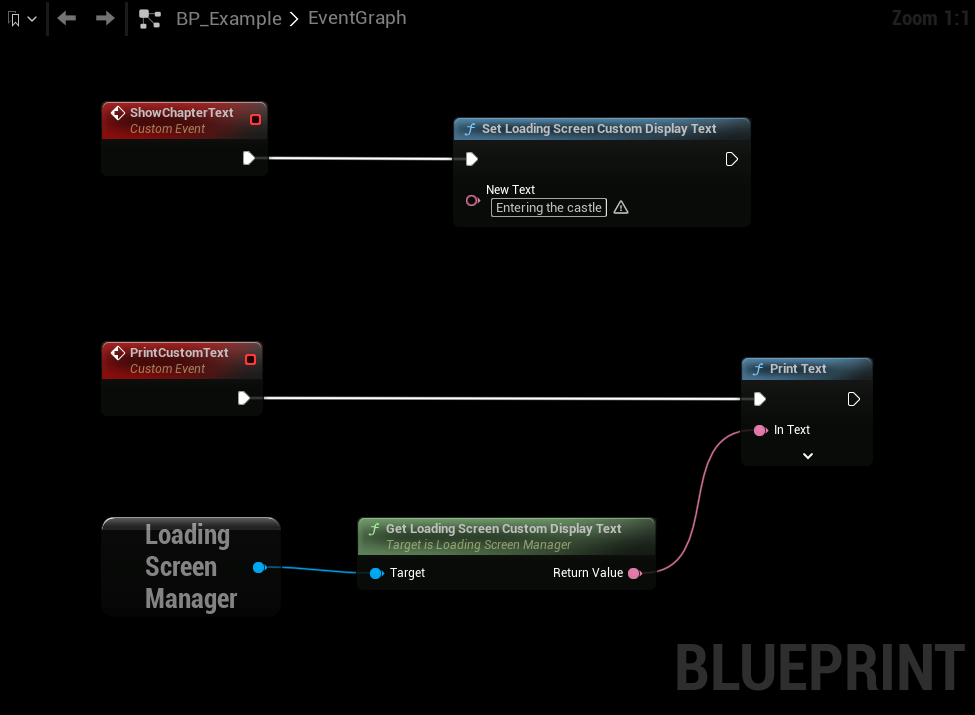
To show your own text instead, call Set Loading Screen Custom Text from anywhere, and read it in the widget with Get Loading Screen Custom Text. The plugin never changes the custom text itself.
For text that should be translated, use Set Loading Screen Custom Display Text and Get Loading Screen Custom Display Text, which take and return a localizable text. Both pairs set and read the same text.
Status Text
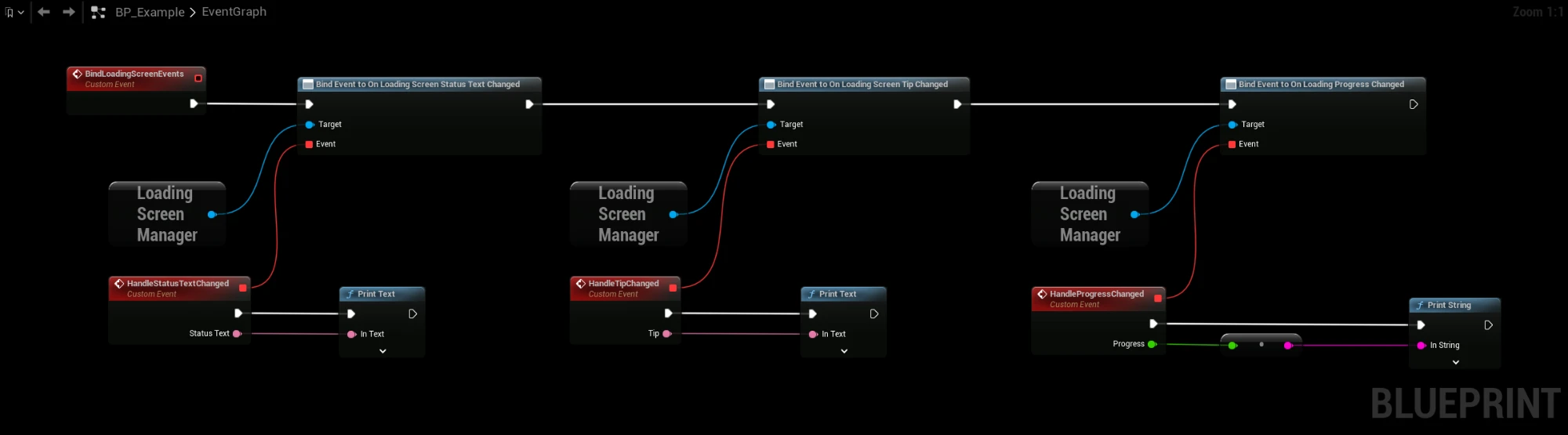
The reason is meant for developers. To tell the player what is happening, read Get Loading Screen Status Text on the Loading Screen Manager in your widget, or bind On Loading Screen Status Text Changed. The built-in loading screen shows it automatically.
The first of these that applies is used:
- Key Press Text, while waiting for a key press.
- The custom text, if one is set.
- A status text from a task or an object implementing the Loading Process Interface.
- The text for what the game is doing: Connecting Text, Loading Map Text, Streaming Levels Text, Compiling Shaders Text or Finishing Text.
- Default Text.
The texts in step 4 are set under Loading Screen → Status Text in Project Settings. They are empty by default, and an empty text uses Default Text. See Status Text.
To report your own status, call Set Status Text on a task from Create Loading Screen Process Task, or implement Get Loading Status Text in the Loading Process Interface. Return true and set Out Status Text.
The status text can't change while Open Level blocks the game thread. Loading Map Text is shown during the load.
This example binds the events for the status text, the tip and the progress. Replace the print nodes with Set Text and Set Percent in your widget.